Samsung Smart Switch Mobile
Screenshots
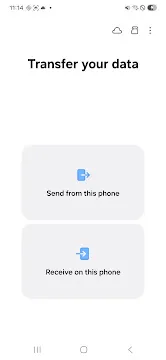
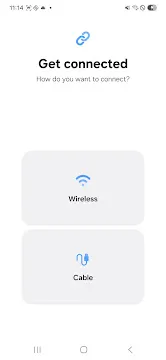
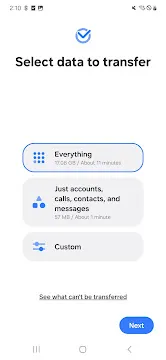
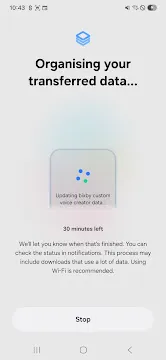
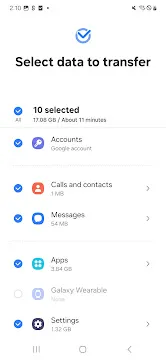
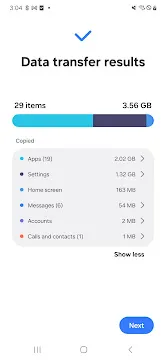
Samsung Smart Switch Mobile makes moving your digital life to a new Galaxy device incredibly easy. This powerful tool transfers your photos, contacts, music, and messages without the typical headache of manual backups. Whether you are switching from an old Android phone or even an iOS device, this app handles the heavy lifting for you. You can quickly settle into your new phone because your familiar content stays right at your fingertips.
The app provides multiple ways to connect your devices for a seamless experience. You can use a wireless connection for convenience or a USB cable for a faster, more stable transfer. It supports a wide range of data types, ensuring that your personal settings and call logs move with you. By simplifying the setup process, Samsung Smart Switch ensures you spend less time configuring your phone and more time enjoying it.
How to Download and Install Samsung Smart Switch Mobile APK for Android
Samsung Smart Switch is the best tool for moving your data to a new Galaxy device. While most users find it in the official app store, you may sometimes need to install the APK file manually. This guide explains how to download and set up the app safely on your Android phone.
Check Your Device Compatibility
Before you begin the download, ensure your phone meets the technical requirements. Smart Switch works on most modern Android devices, but it needs specific software to run correctly.
- Android Version: Your device must run Android 5.0 or higher.
- Storage Space: You need at least 500 MB of free space for the installation and the data transfer process.
- Battery Life: Keep your battery above 80% to prevent the phone from shutting down during the installation.
Step 1: Enable Unknown Sources
Android phones block apps that do not come from official stores by default. You must change your settings to allow the APK installation.
- Open the Settings app on your phone.
- Scroll down and tap Apps or Security.
- Look for Special app access and tap it.
- Select Install unknown apps.
- Choose your web browser (like Chrome) and toggle the switch to Allow from this source.
This permission allows your browser to open and install the file you are about to download.
Step 2: Download the Smart Switch APK
Once your settings are ready, you can get the file.
- Visit Filetomob.com.
- Search for “Samsung Smart Switch Mobile APK Download”
- Navigate to the app page.
- Click the download APK button and wait for the file to save to your device.
Step 3: Install the Application
Installing the app only takes a few seconds once the file is on your phone.
- Open the File: Tap the completed download notification or find the file in your Downloads folder.
- Confirm Installation: A pop-up will ask if you want to install the application. Tap Install.
- Wait for Completion: Your phone will scan the file for security threats and then place the app in your menu.
- Open the App: Tap Open or find the Smart Switch icon on your home screen.
Step 4: Set Up Permissions
The first time you launch Smart Switch, the app needs access to your data to move it.
- Agree to Terms: Read and accept the privacy policy.
- Grant Access: Tap Allow when the app asks for permission to access your contacts, photos, and messages.
- Choose Your Role: Decide if this phone will Send Data or Receive Data.
Final Tips for Success
If the installation fails, ensure you have disabled Play Protect temporarily in the Play Store settings. Sometimes, this security feature blocks manual APK installs. Additionally, always make sure you are downloading the version designed for your phone’s processor (usually ARM64). Once installed, you can start your transfer and enjoy your new Samsung Galaxy experience.
Prepare Your Samsung Galaxy for a Seamless Transfer
Moving to a new Samsung Galaxy is exciting. However, a smooth transition requires a little preparation. Before you start moving your photos, contacts, and messages, follow this essential pre-transfer checklist.
1. Power Up Your Devices
Transferring large amounts of data consumes significant energy. Low battery levels can cause the process to fail midway, which might lead to data errors.
- Minimum Charge: Ensure both phones have at least 20% battery life.
- Pro Tip: For the best results, charge both devices to 50% or higher before you begin.
- Stay Connected: Keep both phones plugged into a charger during the transfer if you have a lot of data.
2. Verify Device Compatibility
Samsung Smart Switch works with most modern smartphones, but you must meet specific requirements to ensure the app functions correctly.
- The Receiving Device: Your new phone must be a Samsung Galaxy.
- The Old Android Device: Must run Android 4.3 or higher.
- The Old iOS Device: Must run iOS 5.0 or higher.
3. Clear Enough Storage Space
Your new Galaxy needs a place to store everything you are moving. If the new phone is cluttered or has a smaller capacity than your old one, the transfer will stop.
- Check Totals: Open your settings and look at the “Storage” section.
- Compare Sizes: Make sure the available space on the new phone exceeds the total size of the data you plan to move.
- Delete Junk: Remove old videos or large apps from your old phone to speed up the process.
4. Update the Smart Switch App
Software bugs can hinder your progress. Using the latest version of the app ensures you have the most stable connection and the newest features.
- Visit the Store: Open the Google Play Store or Samsung Galaxy Store.
- Check for Updates: Search for “Smart Switch” on both the old and new devices.
- Sync Versions: Install any pending updates so both phones run the most current software.
By following these simple steps, you create a stable environment for your data. Once you finish this checklist, you are ready to launch the app and enjoy your new Samsung Galaxy experience.
Samsung Smart Switch: Choosing Your Transfer Method
Moving your life from one device to another feels like a massive chore. Luckily, the Samsung Smart Switch app simplifies this process. It acts as a digital bridge between your old phone and your new Galaxy.
To get the best results, you must pick the right connection strategy. Each method offers specific benefits depending on your hardware and how much data you own.
Direct Wireless Transfer
The wireless method is the most popular choice for most users. It uses a high-frequency Wi-Fi Direct connection to beam data through the air.
- Best For: Speed, convenience, and moderate data loads.
- The Setup: You place both phones next to each other and follow the on-screen prompts.
- Pros: You do not need any physical cables or adapters. It is incredibly user-friendly for beginners.
- Cons: Signal interference can occasionally slow things down. Large video libraries may take a significant amount of time.
USB Cable (Wired) Connection
If you have a massive amount of data, a physical cable is your best friend. This method creates a “hard” link between the two devices.
- Best For: Stability and massive file sizes, such as 4K videos or high-resolution photo galleries.
- The Setup: Connect the two phones using a USB-C to USB-C cable. If your old phone uses a different port, use the USB-OTG adapter that often comes in the Galaxy box.
- Pros: This is the fastest transfer method available. It provides the most stable connection and rarely fails mid-process.
- Cons: You must remain tethered. You cannot move the phones apart until the transfer hits 100%.
External Storage (SD Card or USB Drive)
Sometimes you aren’t ready to move into your new phone immediately. External storage acts as a middleman for your data.
- Best For: Users who want to sell their old phone before the new one arrives.
- The Setup: Back up your old phone to a microSD card or a USB flash drive. Later, plug that storage into the new Galaxy to “restore” the files.
- Pros: This creates a physical copy of your data that you can keep in a drawer. It works well if you have limited internet access.
- Cons: You need a compatible SD card or a USB-C flash drive.
PC or Mac Backup
For those who want a permanent “safety net,” the desktop version of Smart Switch is the gold standard.
- Best For: Deep backups and long-term data security.
- The Setup: Install the Smart Switch software on your computer. Connect your phone via USB and hit “Backup.” Then, connect the new phone to “Restore.”
- Pros: Your computer acts as a massive hard drive. This protects you if your phone is ever lost or stolen in the future.
- Cons: It requires a computer and a bit more technical effort to install the software.
Comparison Summary
- Wireless: Choose this for a quick, cable-free experience with standard apps and messages.
- USB Cable: Use this to move 100GB+ of data without any risk of disconnection.
- External Storage: Pick this if you need to wipe your old phone today but won’t get your new one until tomorrow.
- PC/Mac: Select this for the highest level of data redundancy and peace of mind.
Regardless of the path you take, ensure both devices have at least 80% battery life before you start. This prevents the phones from shutting down during the critical migration phase. Once you choose your method, the app handles the heavy lifting, moving your contacts, photos, and settings automatically.
How to Use Samsung Smart Switch: The Ultimate Android to Galaxy Transfer Guide
The Samsung Smart Switch app simplifies the process of moving your digital life to a new Galaxy device. This guide walks you through the transition from any Android phone to your new Samsung smartphone.
Prepare Your Devices
Before you begin, ensure both phones have at least 80% battery life. Large data transfers consume significant power. Connect both devices to a stable Wi-Fi network for the smoothest experience.
Update your apps first. Visit the Google Play Store on your old phone and the Galaxy Store on your new one to ensure Smart Switch is running the latest version.
Step 1: Launch the Application
Start by opening the Smart Switch app on both devices.
- On your new Galaxy: You can find it in the Settings menu under “Accounts and Backup” or search for it in your app drawer.
- On your old Android: Download the app from the Play Store if it isn’t already installed.
Accept the privacy terms and grant the necessary permissions on both screens to allow the app to access your files.
Step 2: Define the Device Roles
You must tell the app which phone is giving and which is receiving.
- Old Android Phone: Tap Send Data.
- New Galaxy Phone: Tap Receive Data.
- Source Selection: On the new Galaxy, select Galaxy/Android as your old device type.
Step 3: Establish a Connection
Now, choose how you want the phones to talk to each other. You have two primary options:
- Wireless Connection: This is the most convenient method. The phones will pair using high-frequency audio or a temporary Wi-Fi Direct PIN. Keep the devices within six inches of each other.
- USB Cable Connection: This method is often faster for massive photo libraries. Use the USB-C to USB-C cable that came with your new phone to link them directly.
Once connected, your old phone will ask for permission to share data. Tap Allow to proceed.
Step 4: Select Your Content
Your new Galaxy will now scan the old phone to see what can be moved. You do not have to move everything. Choose the option that fits your needs:
- Everything: This moves all photos, videos, messages, call logs, and apps.
- Just accounts, calls, and contacts: Use this for a “fresh start” while keeping your essential identity.
- Custom: This allows you to hand-pick specific folders, certain apps, or specific time ranges for messages.
After making your selection, tap Next or Transfer.
Step 5: Monitor the Transfer
The transfer process begins immediately. You will see a percentage bar on both screens.
Pro Tip: Tap the “Keep screen on” checkbox on the transfer page. This allows you to monitor the progress without the phones locking.
Avoid using either phone during this time. Moving the phones away from each other or opening other apps can interrupt the signal and force you to restart the process.
Step 6: Finalize the Setup
When the transfer reaches 100%, your new Galaxy will display an “All Done” or “Go to Home Screen” message.
- Data Processing: Even after the transfer finishes, the new phone will work in the background to “organize” your data. This might take a few minutes.
- App Downloads: Your Galaxy will automatically begin downloading the Android versions of your old apps from the Play Store.
- Check Your Gallery: Open your photos and messages to confirm everything arrived safely.
You can now safely disconnect the cable or close the app. Your new Samsung Galaxy is ready for use with all your personal memories intact.
iPhone to Samsung Transfer: How to Move Your Data Using Smart Switch
Switching from an iPhone to a Samsung Galaxy is a smooth process with the Smart Switch app. You can move your photos, contacts, and messages easily. This guide explains the two best ways to transfer your data.
Prepare for the Move
First, update your iPhone to the latest iOS version. Ensure your new Galaxy phone is charged. Turn off iMessage on your iPhone so you don’t miss any incoming texts. Finally, install the Samsung Smart Switch app on your new Galaxy device.
Method 1: The iCloud Transfer (Wireless)
The iCloud method is the easiest way to move data without using cables. This process pulls your information directly from the cloud.
- Open Smart Switch: Launch the app on your new Galaxy phone.
- Receive Data: Tap Receive Data and select iPhone/iPad as the source.
- Sign In: Tap Get data from iCloud instead at the bottom of the screen.
- Enter Credentials: Log in with your Apple ID and password.
- Verification: Enter the verification code sent to your Apple device.
- Transfer: Select the categories you want to move, such as contacts or photos, and tap Transfer.
Keep your Galaxy connected to Wi-Fi until the process finishes.
Method 2: The Wired Transfer (Fastest)
A wired connection is often faster and can move more data at once. It creates a direct “handshake” between the two operating systems.
- Connect the Phones: Use a Lightning to USB-C cable or a USB-C to USB-C cable. Plug one end into the iPhone and the other into the Galaxy.
- Trust the Device: Tap Trust on your iPhone when the pop-up appears.
- Select Content: On the Galaxy, the Smart Switch app will scan the iPhone. Choose the specific files you want to migrate.
- Start the Copy: Tap Transfer to begin the move.
What Does Not Move Automatically
While Smart Switch is powerful, some items require extra steps.
WhatsApp Conversations
Smart Switch can move your WhatsApp data, but it requires an extra step. You must use the Move Chats to Android feature within WhatsApp on your iPhone. This process generates a QR code on the Galaxy screen. Scan this code with your iPhone to migrate your encrypted chats.
Paid Applications
Your apps will not automatically download if they were purchased on the Apple App Store. You must manually find these apps in the Google Play Store. If you paid for a subscription inside an app, you can usually log in to the Android version to restore your access.
Digital Rights Management (DRM)
Music or movies with strict DRM protection may not transfer. However, most modern streaming services like Spotify or Netflix will work perfectly once you sign in on the new device.
Finalizing the Setup
Once the transfer reaches 100%, your Galaxy will begin organizing the files. This might take some time if you have thousands of photos. Once the phone finishes, you will see a summary of everything that moved. Your new Galaxy is now ready to use with all your essential iPhone data.
Samsung Smart Switch Troubleshooting: How to Fix Common Transfer Problems
Samsung Smart Switch usually works perfectly, but errors can occasionally stall your progress. If you encounter a glitch, do not worry. Most issues are easy to fix with a few simple adjustments. Use this guide to solve the most frequent transfer hurdles.
Fix “Connection Lost” Errors
A dropped connection is the most common issue during a data transfer. This happens when the signal between the two phones weakens or breaks.
- Check the Cable: If you are using a wired method, ensure the cable sits firmly in both ports. A loose plug can stop the process instantly.
- Toggle Wi-Fi: For wireless transfers, turn the Wi-Fi off and then back on for both devices. This refreshes the search signal.
- Stay Close: Keep the two phones touching or within a few inches of each other. Distance is often the cause of a failed wireless handshake.
- Disable Battery Savers: Turn off “Power Saving Mode” on both devices. These modes sometimes shut down background processes to save energy.
Solve “Not Enough Space” Alerts
If your new Galaxy phone has less storage than your old device, the transfer will fail. You must manage your data to make it fit.
First, look at your video folders. High-resolution videos take up the most room. You should deselect these large folders in the Smart Switch menu. This allows the transfer to finish with your contacts and messages first.
Second, delete unnecessary apps or blurry photos from your old phone before you start. Clearing out the “clutter” ensures the important files have enough room to land on your new device.
How to Fix App Freezes
Sometimes the Smart Switch app may stop responding or get stuck at a specific percentage. If the screen freezes, you should reset the application.
- Open Settings: Go to the “Apps” menu on your Android phone.
- Find Smart Switch: Scroll down and select the Smart Switch app.
- Clear Cache: Tap on Storage, then select Clear Cache.
- Restart: Close the app completely and launch it again.
This process removes temporary files that might be causing the software to hang. It does not delete your actual data.
What to Do if a Device Is Not Recognized
If your phones refuse to “see” each other, you may have a hardware or driver conflict.
- Use Official Adapters: Always use the original Samsung OTG (On-The-Go) adapter if your cable requires one. Third-party adapters often lack the necessary data pins for a full transfer.
- Update Software: Check for system updates on both phones. An outdated operating system can prevent the two devices from communicating.
- PC Transfers: If you are using a computer to move data, reinstall the Samsung USB drivers. This ensures your PC recognizes the phone correctly when you plug it in.
Final Tips for a Smooth Transfer
To prevent future errors, keep your screen active. Some phones put the processor to sleep when the screen goes dark. Most importantly, avoid using other apps while Smart Switch is running. By following these steps, you can move your data quickly and get back to enjoying your new Galaxy phone.
Alternatives to Smart Switch: Faster, Safer, or Simpler Methods
While Samsung Smart Switch is the go-to tool for Galaxy users, it is not always the best choice. In some situations, you may need a different approach to move your files. Here are the top alternatives and when you should use them.
1. Google Drive Backup
Google Drive is the best option for cross-platform moves. If you are switching from a Samsung to a Google Pixel or another Android brand, this is a reliable choice.
- How it works: You upload your phone’s settings, contacts, and photos to your Google Account. Then, you sign in on the new device to restore them.
- The Downside: This method is often slower than a direct cable transfer. You must wait for large files to upload and then download them again. It also requires a strong internet connection.
2. Samsung Cloud
Samsung Cloud is built directly into your Galaxy settings. It is useful for backing up system settings and basic data.
- Convenience: It works seamlessly with the Samsung ecosystem. You can easily restore your home screen layout and Wi-Fi passwords.
- Recent Changes: Be aware that as of April 2026, Samsung has updated how it handles media. Many users must now use integrated cloud services for photo and video syncing.
- The Downside: The free storage tier is limited. You may need to pay for a subscription if you have a large library of high-resolution videos.
3. Third-Party Apps (Cloneit, ShareIt)
If you need to move data between different brands quickly, third-party apps like Cloneit or ShareIt are popular options.
- Speed: These apps use a “Hotspot” connection to send files at high speeds without using mobile data.
- The Risk: Use caution with these tools. Many free third-party apps contain intrusive advertisements. Some experts also warn about privacy risks, as these apps often request broad permissions to access your private files.
4. The Manual Method (PC or Mac)
For the most control, you can move your files manually using a computer. This is the safest way to handle massive amounts of data.
- Connect to PC: Plug your old phone into your computer via a USB cable.
- Copy Files: Drag and drop your photos, music, and documents into a folder on your desktop.
- Transfer to New Phone: Unplug the old device and connect your new Galaxy. Move the files from the computer into the new phone’s storage.
This method does not require an internet connection or a specific app. However, it will not move your text messages or call logs.
When to Skip Smart Switch
You should consider these alternatives if:
- Brand Mismatch: You are moving from a Samsung to a non-Samsung device.
- Large Libraries: You have hundreds of gigabytes of data that might crash a mobile app.
- Limited Data: You do not have a stable Wi-Fi network for a wireless transfer.
- Privacy Concerns: You prefer to keep your data off the cloud and on your own hardware.
By choosing the right tool for your specific situation, you can ensure your data arrives safely on your new device.
Frequently Asked Questions About Samsung Smart Switch Mobile for Android
What exactly does Samsung Smart Switch Mobile do?
It moves your digital life from an old phone to a new Samsung Galaxy device. Think of it as a digital moving truck. It carries your contacts, texts, photos, videos, and even Wi-Fi passwords.
Is Smart Switch only for Samsung phones?
No, but it works best with Samsung. You can install it on any Android phone, an iPhone, or even a Windows PC. However, the receiving phone is usually a Samsung Galaxy. The sending phone can be from brands like Google, LG, or OnePlus.
What data can I transfer with Smart Switch?
You can transfer almost everything. Here is the main list:
- Contacts and call logs. All your saved numbers and recent calls.
- Messages. SMS, MMS, and even some chat histories.
- Photos and videos. Your entire camera roll and downloads.
- Music and documents. Audio files, PDFs, and Word documents.
- Home screen layout. App placements and your wallpaper.
- Wi-Fi passwords. No need to re-enter them manually.
Do I need a cable or Wi-Fi to use it?
You have two easy options. First, you can use a wireless connection. Both phones just need to be near each other. Second, you can use a USB cable. A simple USB-C to USB-C cable works for newer phones. Alternatively, you can use an OTG adapter (often included with new Samsungs).
Is the transfer process fast?
Yes, but speed depends on your data size. For example, moving 10 GB of photos might take 15 to 20 minutes wirelessly. Using a cable is usually faster. The app also shows a live progress bar, so you know how long to wait.
Can I move game progress and app data?
Smart Switch can reinstall the apps themselves, but it often cannot move the internal “progress” or “save files” for every game.
Most modern games save your progress to the cloud via Google Play Games or a developer account. To restore your progress, simply log in to your account inside the game on your new Galaxy. Similarly, apps like Facebook or Instagram will restore your data once you sign in with your username and password.
Does my phone need to be fully charged?
You should charge both devices to at least 80% before starting. Data transfers are demanding and consume battery quickly. If a phone dies during the move, the transfer will fail, and you may have to start over. If you use a wireless transfer, you can keep both phones plugged into their chargers while they work.
Will my apps transfer automatically?
Some apps will transfer, but not all. Smart Switch moves the app installation files for free apps. However, paid apps might need a fresh download from the Google Play Store. Also, app login details usually do not carry over. You will likely need to log in again.
Does Smart Switch delete data from my old phone?
No, it never deletes anything. Your old phone stays exactly the same. Smart Switch only copies your data. Therefore, you can run the transfer multiple times without any risk.
What about my WhatsApp chats?
Smart Switch can move WhatsApp data. But you must use the “Cable” option for this to work. Wireless transfer does not support WhatsApp. After moving, open WhatsApp on your new phone. Then verify your number to restore the chats.
Can I use Smart Switch after setting up my new phone?
Yes, absolutely. You do not have to use it during the first setup wizard. Open the Smart Switch app anytime from your app drawer. Then start a manual transfer. This is perfect if you forgot something the first time.
What if the transfer stops or fails?
First, check your battery levels. Keep both phones above 30%. Second, disable any battery saver mode. Third, restart both devices. Finally, try using a cable instead of Wi-Fi. Cables provide a more stable connection.
Do I need an internet connection to transfer?
No, you do not. Smart Switch creates a direct local connection. It uses either Wi-Fi Direct or a USB cable. Your data never goes to the cloud. This makes the transfer fast and private.